
How Excel Functions Help Solve Real Business Problems?
Many people start using Excel as a simple calculator. They add totals, type labels, and maybe create a few tables. But once they begin using functions properly, Excel becomes much more than a spreadsheet.
It becomes a practical problem-solving tool.
In the workplace, Excel functions help people answer real questions every day. How much did we sell this month? Which invoices are overdue? How many staff have not completed their forms? Which customers qualify for a discount? What is the monthly payment for this loan?
These are not advanced technical questions. They are normal business questions. And this is exactly where Excel functions are useful.
Whether you work in admin, HR, finance, sales, operations, or customer service, learning the right Excel functions can help you work faster, reduce mistakes, and make better decisions with data.
I would like to say:
“Raw data tells you what happened. Excel functions help you understand what it means.”
In this article, we will explore the breadth of Excel functions and their problem-solving capabilities, using practical business examples that make sense for working adults and modern learners.
Why Excel Functions Matter in Real Business Work
In many workplaces, people deal with the same kinds of questions every day:
-
How much did we sell this month?
-
Which invoices are overdue?
-
How many staff have not submitted their forms?
-
Which customers bought more than $5,000 this quarter?
-
How many working days are left before the deadline?
-
What is the monthly payment for this loan?
Without functions, these tasks take more time and usually involve more manual checking.
With functions, Excel can help answer them quickly and consistently.
- A sales coordinator may use Excel to total revenue by product category.
- A HR executive may use it to count headcount by department.
- A finance officer may calculate loan repayments or depreciation.
- An operations team may use it to flag urgent orders or late deliveries.
- This is the real strength of Excel: it helps ordinary users solve practical business problems.

1. Mathematical and Statistical Functions: The Everyday Workhorses
For most users, mathematical and statistical functions are the first step into smarter Excel usage.
These include familiar functions such as SUM, AVERAGE, MAX, and MIN.
At first glance, they seem basic. But in business, basic does not mean unimportant.
- A retail manager may use SUM to calculate weekly sales.
- A training manager may use AVERAGE to find the average assessment score.
- A warehouse supervisor may use MIN to identify the lowest stock level.
- A sales director may use MAX to find the highest monthly sales figure.
- These simple functions help answer practical questions quickly.
“SUM tells you how much. AVERAGE tells you how well. MAX and MIN tell you where to pay attention.”

Conditional calculations
In real work, you often do not want to total everything. You only want to calculate values that meet certain conditions.
That is where SUMIF, SUMIFS, AVERAGEIF, and AVERAGEIFS become useful.
For example:
-
total only the sales from the East region
-
average only the scores of learners who passed
-
sum only the expenses for a specific department
-
calculate only approved claims for a selected month
Business case
Imagine a company with 200 expense claims in one sheet. The finance team wants to know:
-
How much was claimed by the Marketing team only?
-
What was the average taxi claim for approved requests?
-
How much did the Singapore branch spend in February?
Instead of filtering and manually calculating each number, Excel functions can handle this in seconds.
Counting functions
Counting is another common business task.
Functions like COUNT, COUNTA, COUNTBLANK, COUNTIF, and COUNTIFS help answer questions like:
-
How many employees completed the survey?
-
How many order forms are still blank?
-
How many invoices are overdue?
-
How many products belong to Category A?
This is especially useful in administration, HR, sales reporting, and compliance tracking.
“If SUM answers ‘how much,’ COUNT answers ‘how many.’ Both are essential in business reporting.”
More advanced analysis
As users grow more confident, they may also use functions such as ROUND, MEDIAN, LARGE, SMALL, and SUMPRODUCT.
These are useful when accuracy, ranking, or weighted calculations matter.
For example:
-
ROUND helps standardize values in invoices and financial reports
-
LARGE can identify the top 3 sales values
-
SMALL can show the lowest 5 cost items
-
MEDIAN helps when averages are distorted by extreme numbers
-
SUMPRODUCT is excellent for multiplying quantities by prices across multiple rows
Business case
- A procurement officer may use SUMPRODUCT to calculate the total cost of different items ordered in varying quantities.
- A sales manager may use LARGE to identify the top performers.
- A finance officer may use ROUND to tidy currency figures before presentation.
2. Logical Functions: Teaching Excel to Think by Rules
Business processes often depend on rules.
- If a learner scores above 70, they pass.
- If an invoice is unpaid after 30 days, it is overdue.
- If stock falls below a minimum level, reorder it.
- If a customer spends above a threshold, apply a discount.
This is where logical functions become powerful.
The IF function
The most well-known logical function is IF.
It allows Excel to return one result if a condition is true, and another if it is false.
Business case
A HR officer may use IF to classify attendance:
-
If attendance is 75% or above, return “Eligible”
-
Otherwise, return “Not Eligible”
A sales team may use it like this:
-
If sales exceed target, return “Bonus”
-
Otherwise, return “No Bonus”
“The IF function is like teaching Excel your business rules.”

AND and OR
Sometimes one condition is not enough.
That is when AND and OR are useful.
-
AND means all conditions must be true
-
OR means only one condition needs to be true
Business case
A bank may approve a loan only if:
-
salary is above a minimum amount and
-
credit history meets the requirement
A company may offer free delivery if:
-
the customer is a member or
-
the order value exceeds a certain amount
These functions help spreadsheets reflect real decision-making logic.
IFERROR
One of the most practical functions in everyday work is IFERROR.
Sometimes formulas return error messages such as #N/A or #DIV/0!. These errors may be technically correct, but they are not always useful for the person reading the report.
IFERROR lets you replace those messages with something clearer, such as:
-
“Not Found”
-
“Missing Data”
-
0
-
“Check Input”
Business case
A dashboard uses lookup formulas to retrieve product names from a master list. If a product code is entered wrongly, the report shows an error. Using IFERROR makes the dashboard cleaner and more professional.
“IFERROR does not remove the issue. It helps you present the issue more clearly.”
IFS and SWITCH
For users working with multiple categories or outcomes, IFS and SWITCH can make formulas easier to read than deeply nested IF statements.
These are useful for grading systems, performance bands, customer tiers, and status labels.
3. Lookup and Reference Functions: Finding the Right Information Fast
One of the biggest workplace frustrations is searching for information in long tables.
This is where Excel really shines.
Lookup functions help users find matching records and return the information they need.
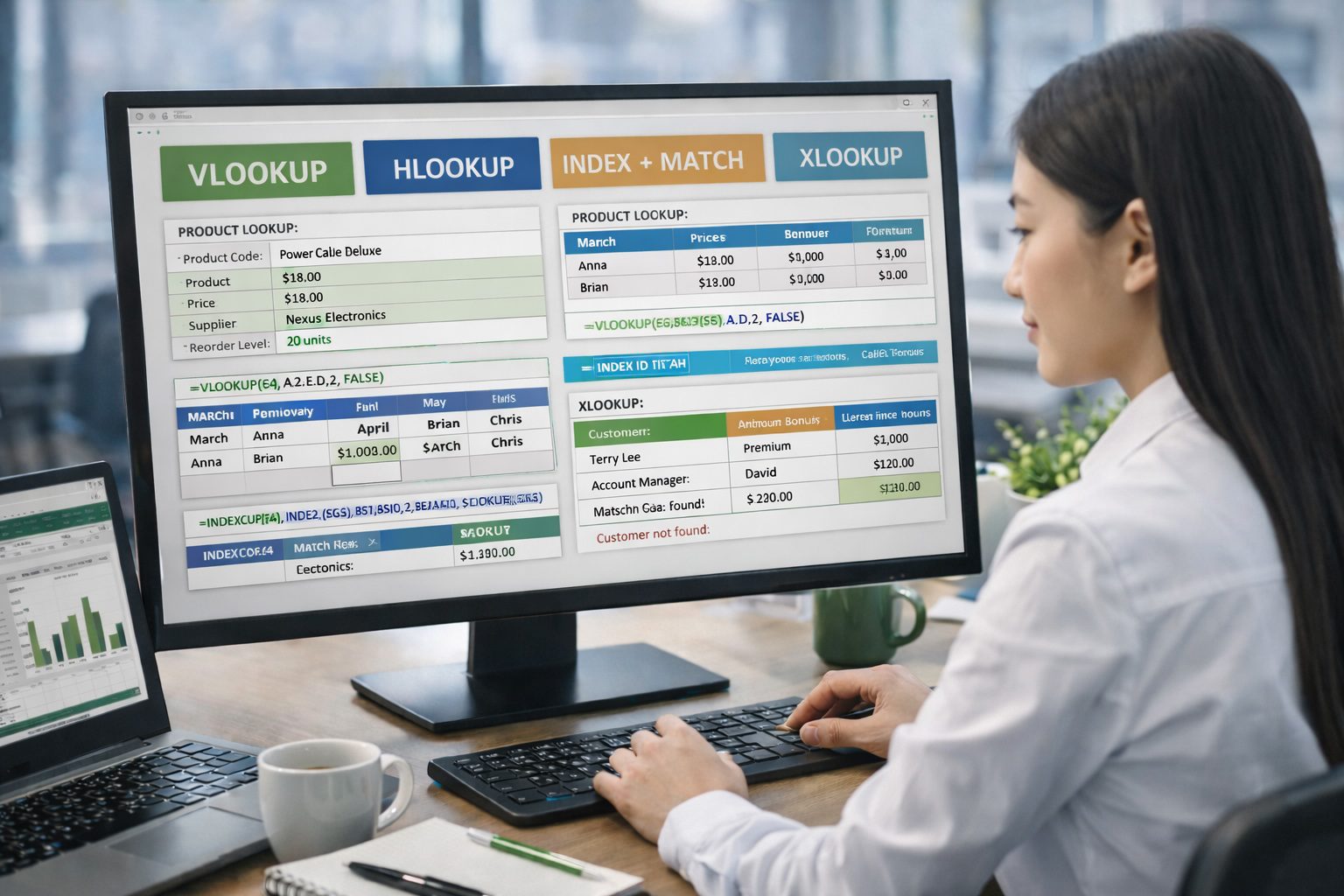
VLOOKUP and HLOOKUP
VLOOKUP is commonly used to search vertically in a table.
HLOOKUP does the same horizontally.
Business case
A sales admin enters a product code and wants Excel to automatically return:
-
the product name
-
the selling price
-
the supplier
-
the reorder level
This saves time and avoids copy-and-paste errors.
INDEX and MATCH
Many advanced users prefer INDEX-MATCH because it is more flexible than VLOOKUP.
It works well when:
-
the return column is on the left
-
a two-way lookup is needed
-
the table structure may change over time
Business case
A finance team wants to retrieve an employee’s bonus based on both employee name and performance month. This is a two-dimensional lookup, and INDEX-MATCH handles it well.
XLOOKUP
For Microsoft 365 users, XLOOKUP is often the best modern choice.
It is more flexible than VLOOKUP and can:
-
search left or right
-
return exact matches by default
-
show a custom message if no result is found
-
work vertically or horizontally
Business case
A customer service officer enters a customer ID and needs to retrieve:
-
customer name
-
service plan
-
assigned account manager
-
latest invoice value
If the ID does not exist, XLOOKUP can return “Customer not found” instead of an error.
“Lookup functions turn Excel from a calculator into a searchable business tool.”
MATCH
The MATCH function is useful when you want the position of an item in a list rather than the item itself.
This can help in ranking, locating headers, or building more dynamic formulas.
4. Text Functions: Cleaning Up Real-World Data
In theory, business data should always be neat and consistent.
In reality, it often is not.
Names may have extra spaces.
Codes may need to be split apart.
Text may appear in the wrong case.
Data copied from systems may be messy.
This is where text functions become extremely valuable.
Common text functions
Functions such as LEN, LEFT, RIGHT, MID, CONCAT, TEXTJOIN, UPPER, LOWER, PROPER, and TRIM help users clean and reshape text.
Business case
A HR file contains employee IDs like SG-HR-2045.
Using text functions, Excel can extract:
-
SGas the country code -
HRas the department -
2045as the employee number
Another example:
A customer database contains names like victor pow with extra spaces and inconsistent capitalization.
Using TRIM and PROPER helps standardize the data for reporting or mail merge.
“Text functions are often underestimated until you have to clean messy data from the real world.”
5. Date and Time Functions: Managing Time, Deadlines, and Schedules
Dates are central to many workplace processes.
Invoices have due dates.
Projects have deadlines.
Employees have start dates.
Orders have delivery dates.
Contracts have expiry dates.
Excel’s date and time functions help users manage this information more effectively.
Common date functions
Useful examples include:
-
TODAY
-
NOW
-
DATE
-
YEAR
-
MONTH
-
DAY
-
DATEDIF
-
DAYS
-
NETWORKDAYS
Business case
A HR team may calculate length of service for each employee.
A project coordinator may count the number of working days left before submission.
A finance officer may flag invoices overdue by more than 30 days.
A training administrator may track how many days remain before certification expiry.
“Date functions help turn calendar data into decisions and actions.”
6. Financial Functions: Supporting Smarter Money Decisions
Excel is widely used in finance because it includes functions that support common financial analysis.
These include:
-
PMT for loan repayments
-
FV for future value
-
RATE for interest rates
-
NPV and IRR for investment evaluation
-
SLN, DB, DDB, and SYD for depreciation
Business case
A small business owner may want to compare the monthly cost of two loan options.
A finance executive may evaluate whether a project is worth investing in.
An accountant may need to create a depreciation schedule for company equipment.
These functions are especially useful in budgeting, forecasting, accounting, and investment planning.
“Financial functions help users move beyond recording numbers to making financial decisions.”
7. Information Functions: Checking and Validating Data
Information functions are useful when users need to check what kind of value a cell contains or whether something is missing.
Examples include:
-
ISBLANK
-
ISNUMBER
-
ISTEXT
-
ISERROR
-
CELL
Business case
A reporting team may need to check whether imported data contains blanks, text instead of numbers, or formula errors before preparing a monthly dashboard.
These functions are especially useful in data cleaning, validation, and troubleshooting.
8. The Real Power Comes from Combining Functions
Individual functions are useful on their own. But the real strength of Excel appears when users combine them.
A single formula can:
-
check a condition
-
retrieve a result
-
clean the output
-
handle errors
-
return a clear message
This is where Excel starts to feel less like a spreadsheet and more like a practical problem-solving system.
Nested functions
By nesting functions inside one another, users can solve more complex problems without needing multiple helper columns.
Business case
A performance report may:
-
check whether a target is achieved
-
calculate the bonus if it is
-
return “Review Required” if data is missing
Dynamic arrays and modern Excel
In Microsoft 365, dynamic array functions make Excel even more powerful by allowing results to spill automatically into nearby cells. This is useful for unique lists, filtered outputs, and more flexible reporting.
What-if analysis tools
Functions also support business planning tools such as:
-
Goal Seek
-
Scenario Manager
-
Data Tables
Business case
A business owner may ask:
-
How many units must we sell to reach $50,000 profit?
-
What happens if labor cost increases by 10%?
-
Which pricing scenario gives us the best margin?
These are real management questions, and Excel functions help support them.
Excel Functions Turn Raw Data into Actionable Insight
At its core, Excel is not just a spreadsheet tool. It is a problem-solving platform.
Functions help users:
-
calculate faster
-
reduce errors
-
apply business logic
-
retrieve information
-
clean messy data
-
manage dates and deadlines
-
support financial decisions
-
build smarter reports
For working adults:
“You do not need to memorize every Excel function. You need to understand what kind of work problem each function can solve.”
That mindset makes learning Excel more practical and less intimidating.
And in the workplace, that is what really matters.
“Raw data tells you what happened. Excel functions help you understand what it means.”
FAQ
What are Excel functions used for?
Excel functions are used to perform calculations, analyze data, clean text, retrieve information, handle dates, and support decision-making. In business, they help users solve everyday work problems faster and more accurately.
Why are Excel functions important in the workplace?
Excel functions are important because they reduce manual work, improve accuracy, and help users turn raw data into useful information. They are commonly used in reporting, budgeting, HR tracking, sales analysis, and operations planning.
What are the most useful Excel functions for beginners?
Some of the most useful Excel functions for beginners include SUM, AVERAGE, COUNT, IF, COUNTIF, SUMIF, VLOOKUP, XLOOKUP, LEFT, RIGHT, TRIM, and TODAY.
Which Excel functions are best for business reporting?
Functions commonly used in business reporting include SUMIFS, COUNTIFS, AVERAGEIFS, IF, IFERROR, XLOOKUP, INDEX-MATCH, and date functions such as TODAY and NETWORKDAYS.
What is the difference between an Excel formula and an Excel function?
A formula is an expression created by the user, while a function is a predefined calculation built into Excel. A formula may contain one or more functions.
Can Excel functions help with data analysis?
Yes. Excel functions are widely used in data analysis to summarize trends, compare values, calculate results, clean imported data, and support dashboards or management reporting.
Are Excel functions useful for non-finance staff?
Yes. Excel functions are useful for admin staff, HR teams, marketers, sales coordinators, trainers, project teams, and managers. Many everyday office tasks can be improved with the right Excel functions.
Your Title Goes Here
Your content goes here. Edit or remove this text inline or in the module Content settings. You can also style every aspect of this content in the module Design settings and even apply custom CSS to this text in the module Advanced settings.